Digital Certificate Tester User Manual
Find out, in a minute, whether a digital certificate can really be used to sign from a given Windows account: a key in the Windows certificate store (a CSP or a KSP), in a PFX file, or in an HSM, a smart card or a USB token (PKCS#11). When it cannot, the program tells you why and what to do.
Digital Certificate Tester can be downloaded from https://tsaserver.com/CertificateTester.zip. The archive contains the single file Digital Certificate Tester.exe. This manual is also available online at https://tsaserver.com/manual/digital-certificate-tester/.
1. What is Digital Certificate Tester?
Installing a certificate is easy. Knowing that it will sign when an application needs it is not. The certificate can be listed in the Windows store while the HSM that holds its key is unreachable, the DLL of the provider of the key is missing (Provider DLL failed to initialize correctly, error 0x8009001D), the account of a service is not allowed to read the key, the PIN is wrong, or the library of the device has the wrong bitness. The application that needs the certificate usually reports one short, obscure message.
Digital Certificate Tester removes the guessing. It uses the key of the certificate exactly as an application does, signs random data with every hash algorithm and every method that applications use, verifies every signature with the public key of the certificate, and reports the result with all the details of the key: where it is stored, which provider holds it, what the provider needs, and how fast it signs.
The program tests the cryptographic operation of signing and nothing else. It does not check whether the certificate is revoked, qualified, expired, trusted, or whether its key usage allows a given purpose. A certificate that is expired still shows whether its key works.
What you can do with it
- Test a certificate from the Windows store, from a PFX file or from a PKCS#11 device, with SHA-256, SHA-384, SHA-512 (and SHA-1 for legacy systems), RSA and ECDSA keys.
- See where the key is and how it is reached: store, provider, CSP or KSP, container, user or machine key, hardware or software, exportable, key file and its permissions.
- Scan a token or an HSM: slots, token details, PIN retry counter, supported mechanisms and the certificates installed on it.
- Check all the providers of the computer for a missing or broken DLL.
- Measure the speed in signatures per minute, with several threads.
- Watch a key over time to catch an HSM link that drops and returns.
- Run the test as another account (a service account, for example) and see who can read the key file.
- Automate everything from the command line, with an exit code, for monitoring scripts.
2. Requirements
- The program is downloaded from https://tsaserver.com/CertificateTester.zip. Extract the archive and run the file.
- Windows with .NET Framework 4.8. It is part of Windows 10 (version 1903 and later), Windows 11 and Windows Server 2022. On older systems install it once from Microsoft.
- The program is one file,
Digital Certificate Tester.exe. There is nothing to install, no DLL next to it, and no administrator rights are needed (they are needed only for the two options that are marked in section 13). - For a PKCS#11 device: the PKCS#11 library of the manufacturer (for example
eTPKCS11.dllof SafeNet,cryptoki.dllof Luna,softhsm2-x64.dllof SoftHSM2), with the same bitness as the program. On 64-bit Windows the program runs as a 64-bit process, so it needs the 64-bit library. - For a certificate of the Windows store that lives on a token, the client software of the token (the CSP and/or KSP) must be installed, as for any application.
A certificate that works for you may not work for the service that uses it, because a service runs under another account (an IIS application pool, NETWORK SERVICE, a service account) with other rights and another set of keys. Run the program on the same computer and, when possible, as that account (section 13). A result obtained on your own PC says little about a server.
3. Start the program
Double-click Digital Certificate Tester.exe. It opens the main window. The same file is also a command-line tool: when you start it with arguments it runs without a window and writes the report to the console (section 14).
The parameter /gui opens the window with the fields already filled in, which is useful for a shortcut:
"Digital Certificate Tester.exe" /gui /pkcs11 "C:\Windows\System32\eTPKCS11.dll" /slot 0 /pin 1234 /thumbprint 1DDF4A677FEAA2057BCEC975778AD5EAED70E52A
"Digital Certificate Tester.exe" /gui /pfx "C:\keys\signing.pfx" /password MyPassword
"Digital Certificate Tester.exe" /gui /store LocalMachine\My /thumbprint 900FB3CD611104916164242C16DAD369189D2023
The PIN and the passwords are only typed into the fields. They are never saved (section 18).
4. The main window
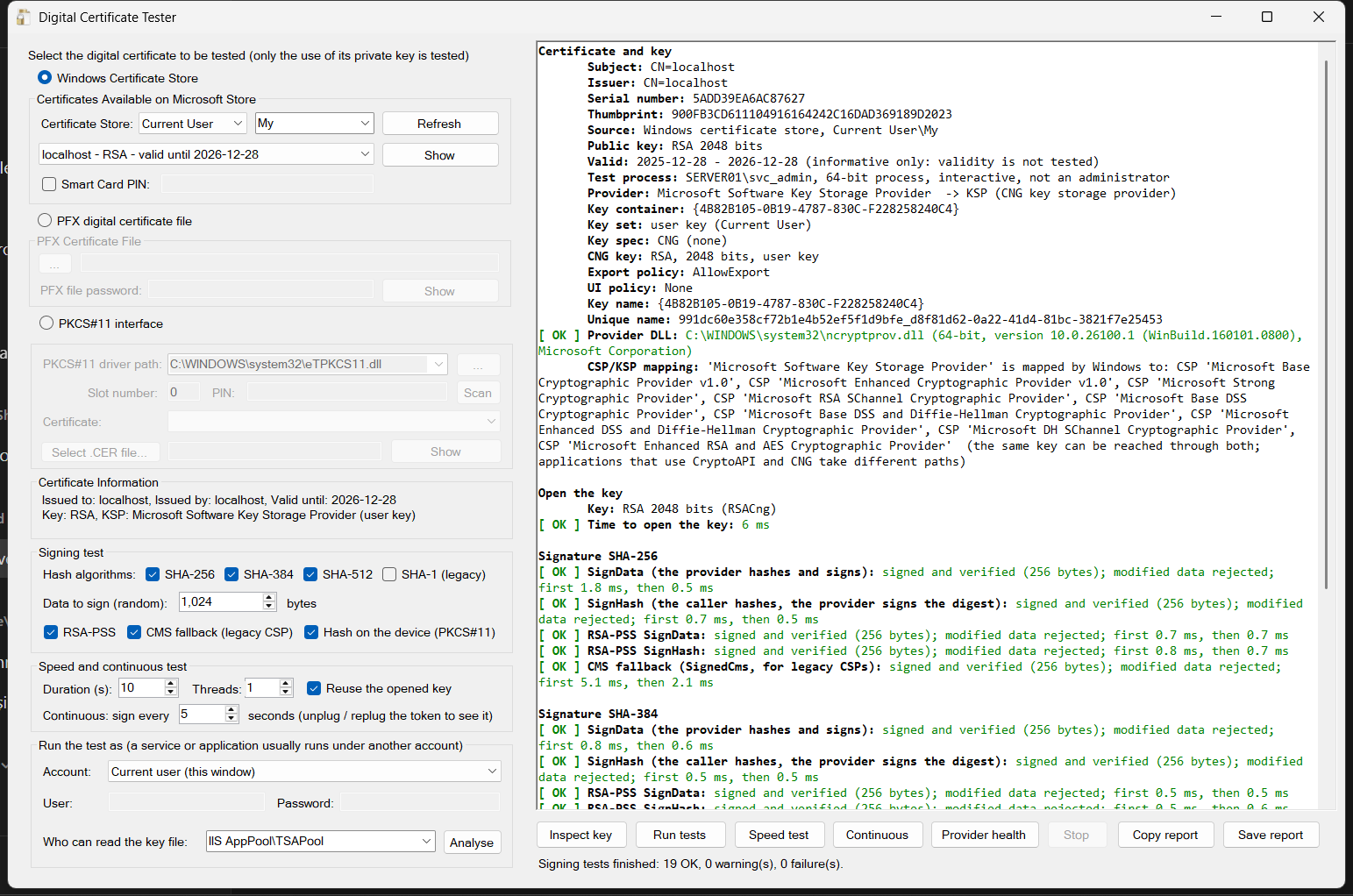
| Area | What it is for |
|---|---|
| Windows Certificate Store, PFX digital certificate file, PKCS#11 interface | The three places where the certificate and its key can be. Select one; only its group is active. |
| Certificate Information | A short description of the selected certificate and of the provider of its key. Nothing is opened to show it. |
| Signing test | The hash algorithms, the size of the data and the optional methods (section 7). |
| Speed and continuous test | The settings of the speed test and of the continuous test (sections 11 and 12). |
| Run the test as | The account under which the test runs, and the analysis of the permissions of the key file (section 13). |
| The report (right) | Green lines are OK, orange lines are warnings, red lines are failures. The long tests write their lines while they run. |
| Inspect key | Describes the certificate and its key (or scans the PKCS#11 device). Nothing is signed. |
| Run tests | The signing test: every hash, every method, every signature verified. |
| Speed test | Signatures per second and per minute, with latencies. |
| Continuous / Stop | Signs every few seconds until you stop it, and logs every change of state. |
| Provider health | Loads every cryptographic provider of the computer and reports the broken ones. |
| Copy report, Save report | Copy the text of the report to the clipboard, or save it as a text file for the support. |
5. Quick start
- Select the certificate. For a certificate that is installed on the computer, keep Windows Certificate Store, select Current User or Local Machine (the one that the application uses) and pick the certificate in the list.
- Press Run tests. The report shows the key, then every signature with its result.
- Read the last two lines. Signatures: N verified, 0 failed and the Verdict: The certificate CAN be used to sign from this process, or CANNOT with the red lines above it that give the cause and what to do.
- Repeat as the account of the application (section 13) if the result for your own account is good but the application still fails.
6. Select the certificate
The selection has three groups, one for each place where a certificate can be. Only the group of the selected source is active.
6.1 The Windows certificate store
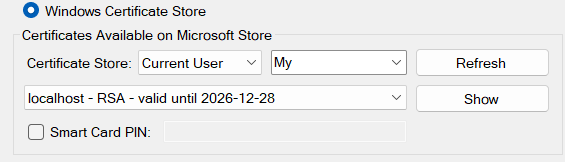
- Certificate Store: Current User (the store of the account that runs the program) or Local Machine (the store of the computer, which services use). Next to it, the name of the store: My (Personal) is the usual one; TrustedPeople, CA, Root, AddressBook and TrustedPublisher are also in the list.
- The list shows every certificate that has a private key, with its key algorithm and validity. There is no filter on the key usage: only the use of the key matters here. An expired certificate is marked EXPIRED.
- Refresh reads the store again, for example after you insert a token. Show opens the standard Windows window of the certificate.
- Smart Card PIN: when the key is on a smart card or a token, Windows normally asks for the PIN in a window of the token software. Select this box and type the PIN to set it silently, so that no window appears. This is also how a service, which has no desktop, uses such a key. Leave it empty if you want the normal PIN window.
A certificate in the Current User store, and its key, belong to one account. A service that runs under another account does not see them at all. A service uses the Local Machine store, with a key whose permissions allow the account of the service (section 13.3).
6.2 A PFX or P12 file
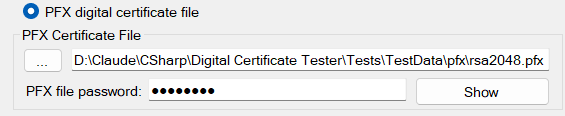
Select the file (...) and type its password. Show opens the standard window of the certificate. The file is loaded when the test runs. The program tries the key storage flags in a fixed order: first ephemeral (the key lives only in memory and no key file is written on the disk), then machine key set, user key set and the default one. The line Key provider of the report tells which way worked. A wrong password is reported as such (section 15).
6.3 A PKCS#11 device
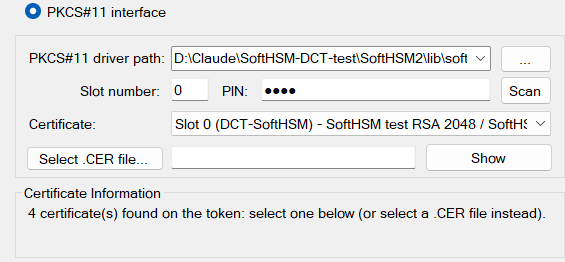
- The library. PKCS#11 driver path lists the libraries of the known manufacturers that are installed on the computer (
eTPKCS11.dll,IDPrimePKCS11.dll,opensc-pkcs11.dll,cryptoki.dll,softhsm2-x64.dlland others). Select one, or type or browse (...) to the library of your device. It must have the same bitness as the program. - The certificates are found by themselves. As soon as the library is selected, the program reads the certificates that are installed on the token and puts them in the Certificate list. You do not have to select a file. No PIN is sent for this: only the objects that the token shows without a login are read.
- The slot and the PIN. Slot number is the position of the token in the list of tokens (the first is 0). The program looks for the selected certificate on all the tokens and uses the one that holds it, so a wrong slot number is corrected (the report says so with the line Slot used). Type the PIN of the normal user of the token.
- Scan. Shows the complete report of the library: tokens, details, mechanisms and objects (section 8). When you typed the PIN, the scan also logs in, to find the certificates and the keys that the token shows only after the login. Some tokens hide their certificates until then.
- When no certificate is found. If the token shows no certificate, select the public certificate of the key as a file with Select .CER file... (DER or Base64). The two ways exist side by side: use the list of the token, or the file. Show opens the selected certificate.
Every wrong PIN decrements the retry counter of the token, which locks after a few attempts. When a device rejects a PIN, the program does not send it again (in the scan, in a test, in the continuous test) until you change the PIN or restart the program. The scan also shows the state of the counter before you test: retry counter is full, low, FINAL TRY or LOCKED.
7. The signing test
Press Run tests. The program opens the key of the certificate, signs random data with every method and every hash that you selected, and verifies each signature.
7.1 The options
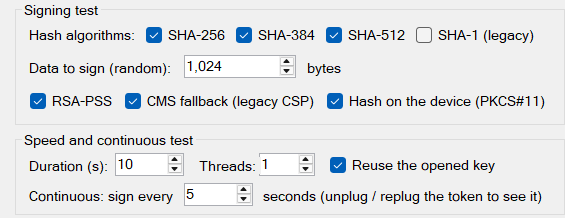
| Option | Meaning |
|---|---|
| Hash algorithms | SHA-256, SHA-384 and SHA-512 are selected by default. SHA-1 (legacy) is for old systems only. Every selected hash is tested with every method. |
| Data to sign (random) | The size, in bytes, of the random data that is signed (default 1,024). The data changes at every run. |
| RSA-PSS | Also test the RSA-PSS padding (RSA keys only). It is optional: many providers do not support it and it is then reported as not supported, not as a failure. |
| CMS fallback (legacy CSP) | Also test the signature through a detached CMS message (SignedCms), the Windows path that works with some legacy CryptoAPI providers that refuse a SHA-2 hash directly. Optional. |
| Hash on the device (PKCS#11) | For PKCS#11, also use the mechanisms that hash inside the device (for example CKM_SHA256_RSA_PKCS), when the token supports them. Optional. |
7.2 What is signed, and how
Applications sign in different ways. The program tests each of them, so a result for one method is not taken for another.
| Method | What it does | Needed |
|---|---|---|
| SignData (store and PFX keys) | The provider hashes the data and signs it. RSA PKCS#1 v1.5, or ECDSA. | yes |
| SignHash (store and PFX keys) | The program hashes the data and the provider signs the digest. | yes |
| Sign the data, hash on the host (PKCS#11) | The program hashes. For an RSA key it signs the DigestInfo with CKM_RSA_PKCS; for an EC key it signs the digest with CKM_ECDSA (a digest longer than the curve order is truncated, as the standard says). The result of an EC key is the raw pair r || s. | yes |
| RSA-PSS (SignData and SignHash) | The probabilistic RSA padding. | optional |
| CMS fallback | The signature value of a detached CMS message made with the key of the certificate. | optional |
| Hash on the device (PKCS#11) | The token hashes and signs (CKM_SHA256_RSA_PKCS, CKM_ECDSA_SHA256 and similar). | optional |
For every signature the program does three more things, which is what makes the result trustworthy:
- it verifies the signature with the public key of the certificate, so a key on the device that does not match the certificate is detected;
- it checks that the verification rejects modified data, so a verification that accepts everything cannot give a false green;
- it measures the time of the first signature (which includes opening the key) and of the next ones, because the first signature of an application pays the opening of the key.
7.3 Read the report
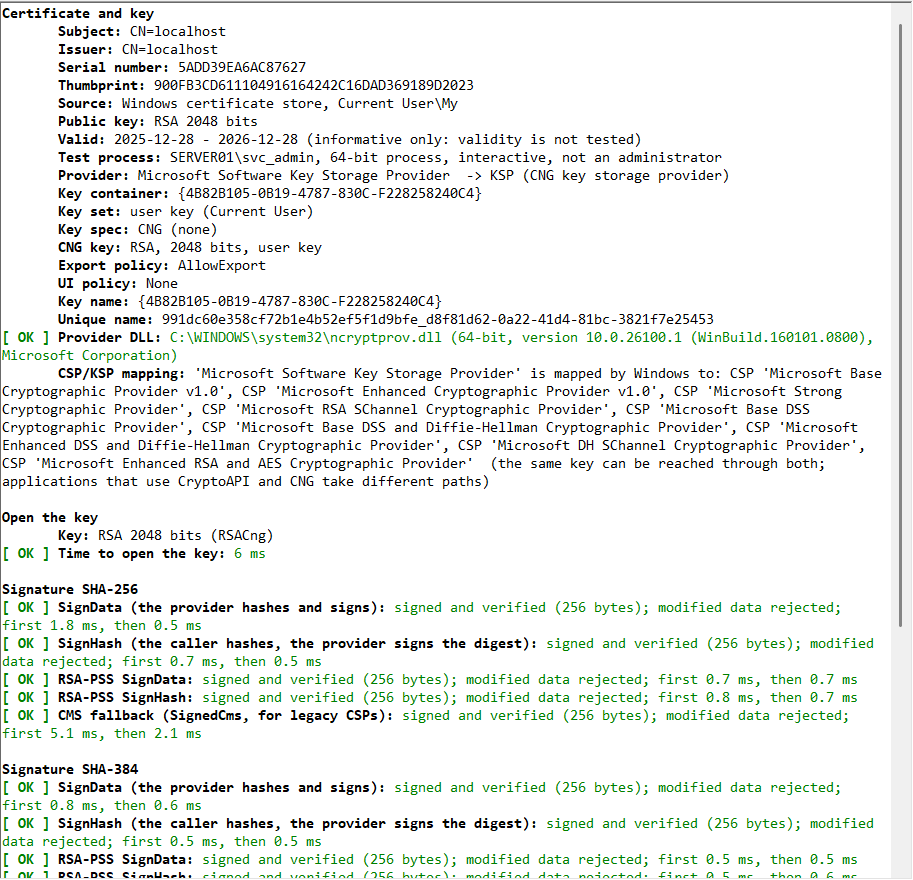
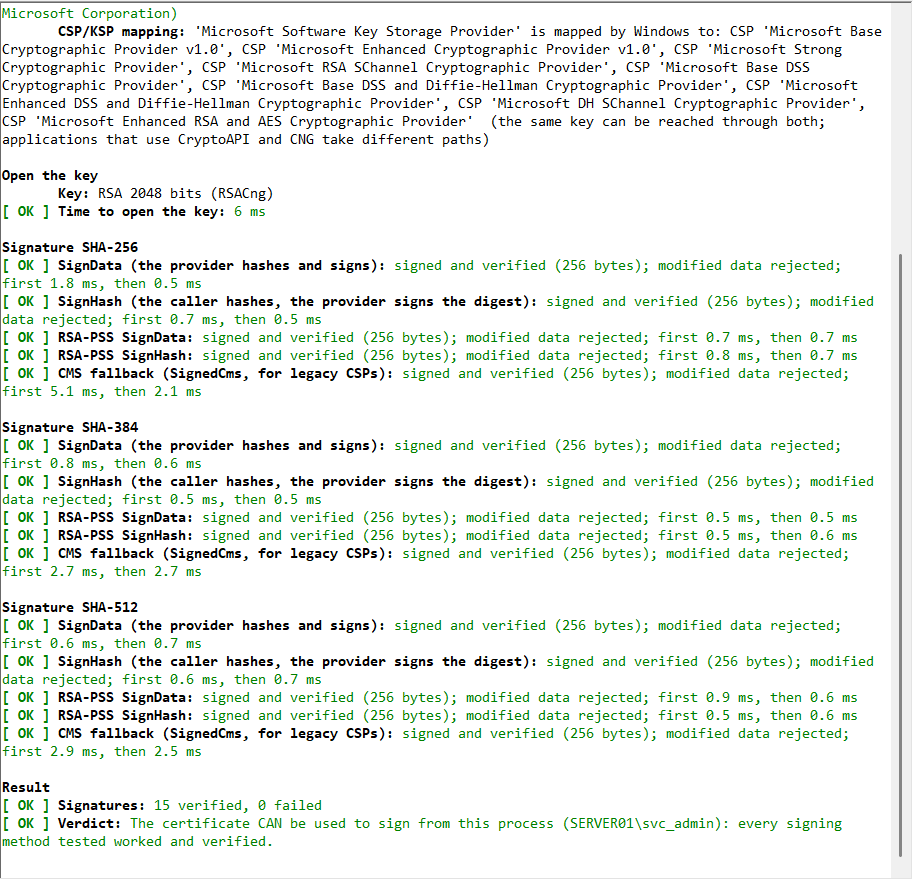
| Colour | Meaning |
|---|---|
| [ OK ] green | The step worked. For a signature: it was created, it verifies, and modified data is rejected. |
| [WARN] orange | Something to look at that does not stop the signing: a slot that was not the configured one, a PIN counter that is low, a provider whose DLL has another bitness. |
| [FAIL] red | The step failed. Under a red line the report writes the possible cause, what to do and the technical detail (the original message of Windows or of the device). |
| no colour | Information, including a method that the provider does not support and that is not required. |
The Result section at the end counts the signatures and gives the verdict:
- The certificate CAN be used to sign from this process: the required methods worked and verified. The name of the account is written in the line, because the answer is valid for that account only.
- The certificate CANNOT be used reliably or The private key cannot be opened: read the red lines above. When the key cannot be opened, a section named Likely cause looks at the provider that holds the key (not installed, DLL missing, does not load, wrong bitness).
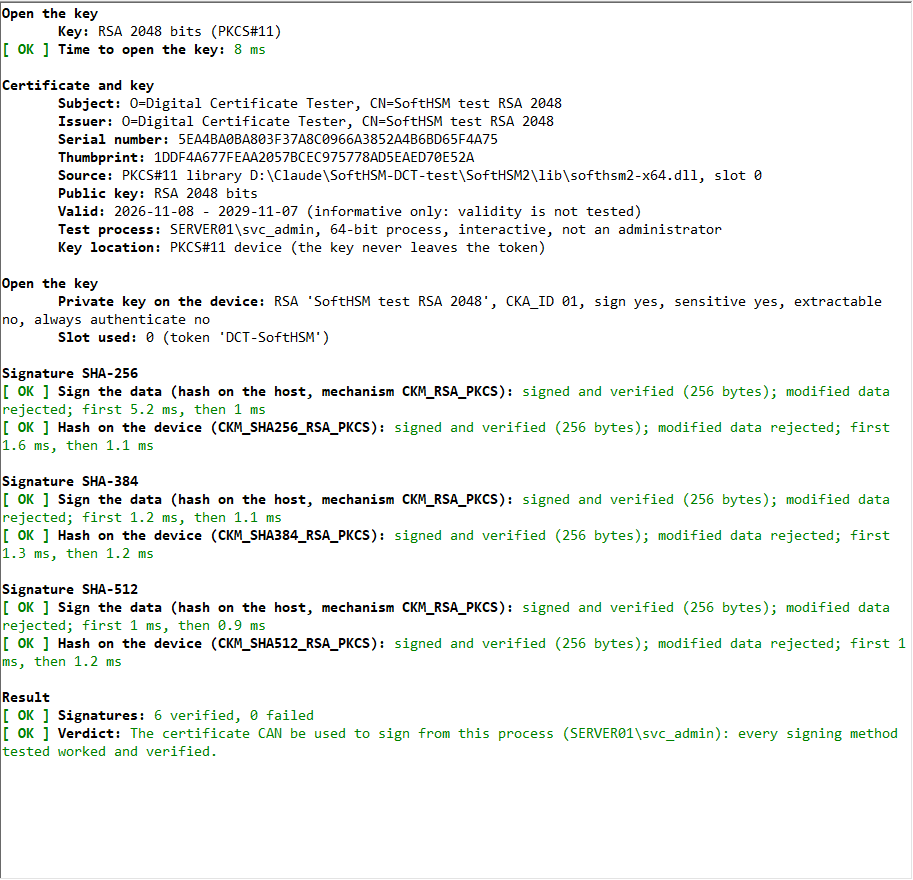
A line such as RSA-PSS ... not supported by this provider/device does not make the verdict negative: only the required methods count.
8. What the report says about the key
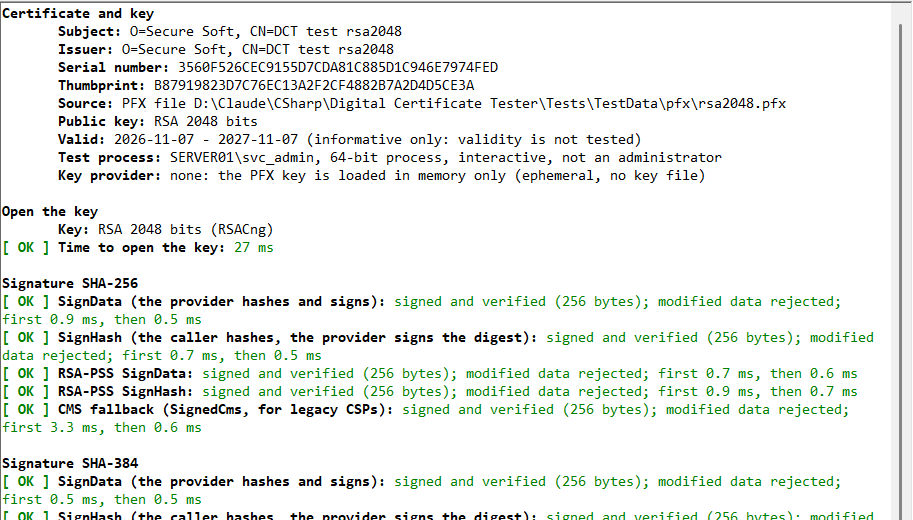
The first section of every report, and the result of Inspect key, describe the certificate and where its key lives. For a key of the Windows store:
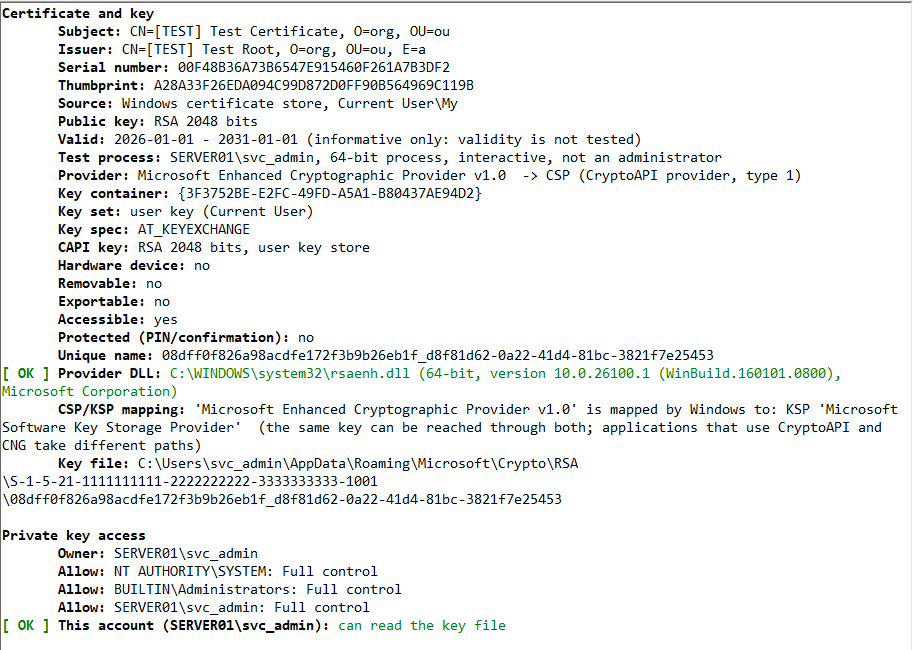
| Line | What it tells you |
|---|---|
| Test process | The account that runs the test, 32 or 64 bit, whether it is interactive (it has a desktop) or a service, and whether it is an administrator. This is the account for which the verdict is valid. |
| Provider | The provider that holds the key, marked KSP (CNG key storage provider) or CSP (CryptoAPI provider, with its type). See section 9. |
| Key container, Key set | The name of the key in the provider, and whether it is a user key (of one account) or a machine key (of the computer). |
| Key spec | AT_KEYEXCHANGE or AT_SIGNATURE for a CryptoAPI key; CNG for a key of a KSP. |
| CNG key / CAPI key | The algorithm and the size of the key. |
| Export policy / Exportable | Whether the key can be exported. A key of a token or of an HSM never can. |
| UI policy / Protected | Whether the key asks a person for a PIN or a confirmation. A service has nobody to answer and fails with NTE_SILENT_CONTEXT. |
| Key storage / Hardware device / Removable | Hardware or software key; a removable device (a token); a key protected by the platform (a TPM). |
| Smart card reader | The reader of a smart card key. |
| Provider DLL | The DLL of the provider: its path, its bitness and its version. MISSING in red is the usual cause of Provider DLL failed to initialize correctly. A bitness that does not match the program is reported in orange. |
| CSP/KSP mapping, Same device, other providers | The other provider that Windows maps to the same device (section 9). |
| Key file, Owner, Allow, DENY | For a software key: the file of the key and its permissions. This account can read the key file in green, or CANNOT in red. |
For a PKCS#11 device the report is the one of Scan:
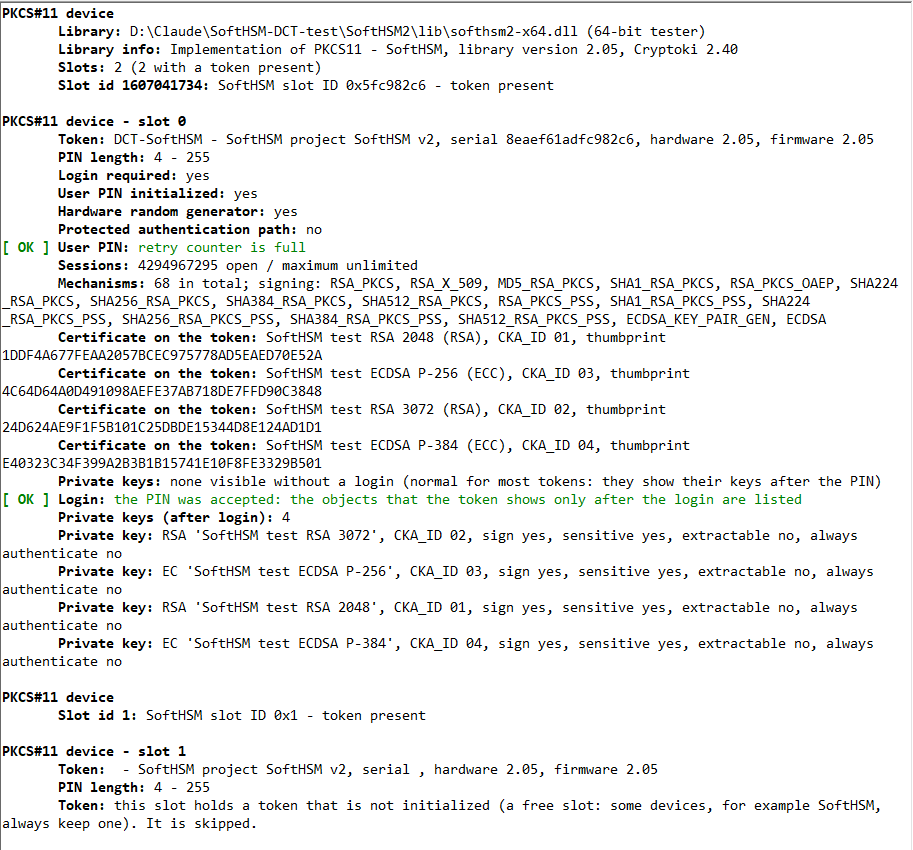
| Line | What it tells you |
|---|---|
| Library, Library info | The library that was loaded and its version and Cryptoki version. |
| Slots, Slot id | How many slots the library reports and which have a token. A slot with a token that is not initialized is skipped (some devices always keep one free slot). |
| Token | Label, manufacturer, model, serial number, hardware and firmware. |
| PIN length, Login required, User PIN initialized | The PIN rules of the token and whether its normal-user PIN is set. |
| User PIN | The retry counter: full (OK), low (a wrong PIN was entered recently, orange), FINAL TRY (one more wrong PIN locks the token, red), LOCKED (the token refuses every PIN until it is unblocked, red). |
| Sessions | The sessions that are open and the maximum that the token allows. It matters for the speed test with several threads. |
| Mechanisms | The signing mechanisms of the token (RSA_PKCS, ECDSA, SHA256_RSA_PKCS, ...). A mechanism that is missing explains an optional method that is not supported. |
| Certificate on the token | Each certificate with its key type, its CKA_ID and its thumbprint. |
| Login, Private key | After a login with the PIN: the private keys of the token, with the type, the label, the CKA_ID, whether the key can sign, is sensitive, is extractable and asks for the PIN at every use (always authenticate). A certificate and a key must have the same CKA_ID. |
| Slot used | The slot where the certificate was found. If it is not the slot that you typed, the line is orange: the order of the slots changes when tokens are plugged or unplugged. |
9. CSP, KSP and PKCS#11
A key can be reached through three different paths. An application uses one of them, so a certificate can work for one application and fail for another. The report says which path the key of your certificate uses.
| Path | How it works | Typical failure |
|---|---|---|
| CSP CryptoAPI provider | The older Windows interface. The certificate in the store has a provider, a container and a provider type (for example eToken Base Cryptographic Provider, type 1). Old providers do not support SHA-2 through the RSA classes. | NTE_BAD_ALGID with SHA-256; NTE_BAD_KEYSET; provider DLL missing. |
| KSP CNG | The newer interface. The provider has no type (shown as CNG). Elliptic-curve keys exist only here. | Provider DLL missing; NTE_NOT_SUPPORTED; the key asks for a PIN (NTE_SILENT_CONTEXT). |
| PKCS#11 | The application loads the library of the manufacturer itself and sends the PIN itself. It does not need the Windows store at all. | Library not found or of another bitness; no token present; PIN rejected; key not found on the token. |
An HSM or a token very often installs both a CSP and a KSP, and Windows maps one to the other (for example SafeNet Smart Card Key Storage Provider and eToken Base Cryptographic Provider). The report shows the mapping in the lines CSP/KSP mapping and Same device, other providers. An application that uses CryptoAPI and one that uses CNG take different paths to the same key, so test the certificate in the way that your application uses it (store, or PKCS#11).
10. Provider health
The button Provider health checks every cryptographic provider registered on the computer, before you choose any certificate. For each provider it reads the registration, checks that its DLL exists and has the right bitness, and loads it (with a limit of 15 seconds).
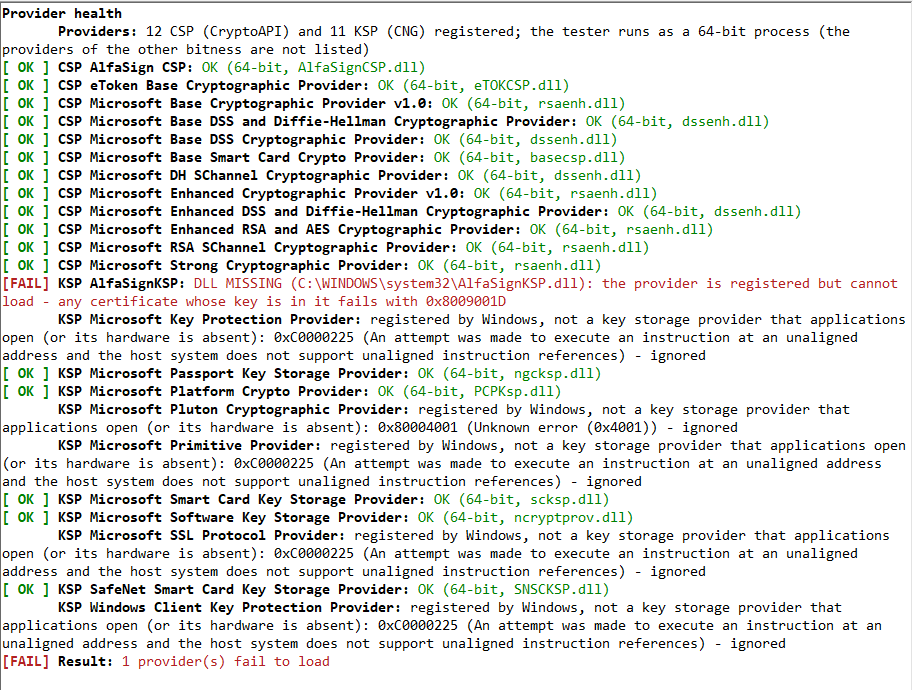
- OK: the provider loads. The line shows its bitness and the DLL.
- DLL MISSING in red: the provider is registered but its DLL does not exist. This is the typical cause of Provider DLL failed to initialize correctly (
0x8009001D) and of certificates that are listed but cannot sign. Repair or reinstall the client software of the HSM or of the token. - did not answer in 15 seconds in red: loading the provider hangs. It is what a provider of a network HSM that is down or a stuck Smart Card service does.
- cannot be loaded in red, with the Windows code of the failure.
- loads, but its DLL is 32-bit in orange: a process of the other bitness cannot use the provider.
- Some components of Windows that are registered as providers but are not key storage (for example Microsoft Primitive Provider) cannot be opened by design. The program lists them as information and ignores them.
Run it first when a certificate that was working suddenly fails on a computer.
11. Speed test
The speed test answers: how many signatures per minute can this key produce? It matters for a time stamp server, a signing service or any application that signs often.
Set Duration (s) and Threads (the number of signatures that run at the same time), then press Speed test. The first hash of the list is used.

| Line | Meaning |
|---|---|
| Configuration | Hash, size of the data, threads, duration, and how the key is used. |
| Signatures | How many signatures were made, and how many failed. |
| Speed | Signatures per second, and per minute. |
| Latency | The time of one signature: minimum, average, median, the 95th percentile (95 signatures out of 100 were faster) and maximum. |
| Per thread | The speed of one thread, when you use several. |
- Reuse the opened key (default) keeps the key open for every thread, the way a server that pools its keys does. Without it the key is opened again for every signature, which shows the cost of opening a key.
- For a PKCS#11 device each thread uses its own session with the device. A smart card or a USB token signs one operation at a time, so more threads do not help; a network or PCIe HSM signs in parallel and scales with the number of sessions. Check the line Sessions of the scan for the limit of the device.
| Kind of key (example from a test computer) | Signatures per minute, one thread |
|---|---|
| RSA 2048 in a PFX file (software) | about 110,000 |
| ECDSA P-256 in a PFX file (software) | about 275,000 |
| RSA 2048 on a software token (SoftHSM2) | about 65,000 (about 165,000 with 4 sessions) |
| RSA 2048 on a USB token | about 220 |
| ECDSA P-256 on a USB token | about 420 |
The figures depend on the computer and the device. They show the order of magnitude: a USB token is thousands of times slower than a software key.
12. Continuous test
A certificate can work now and fail in ten minutes: the network between the server and the HSM breaks, the token is unplugged, a service of the HSM client restarts. The continuous test reproduces this case. It signs every N seconds (default 5), verifies each signature, and writes a line only when the state changes: signing stops, or signing works again. The key is opened again after every failure, from scratch, so the test also shows whether an application would recover by itself.
Press Continuous; the button becomes Stop continuous. Disconnect the token or the HSM and connect it again to see the reaction. This is a real run with a USB token that was unplugged twice:
[    ] Continuous test Started: 00:12:51: signing every 2 s with SHA-256. Disconnect and reconnect the token/HSM to see the reaction.
[ OK ] Continuous test 00:12:54: signing works (2447 ms)
[FAIL] Continuous test 00:13:10: SIGNING FAILED: No PKCS#11 device is present (no token in any slot). [PKCS#11]
[ OK ] Continuous test 00:13:38: SIGNING WORKS AGAIN after 29 s of outage
[FAIL] Continuous test 00:14:40: SIGNING FAILED: No PKCS#11 device is present (no token in any slot). [PKCS#11]
[ OK ] Continuous test 00:14:49: SIGNING WORKS AGAIN after 9 s of outage
[WARN] Continuous test Finished: ran 127 s: 45 signatures OK, 18 failed, 2 outage(s), 38 s without signing
The last line gives the totals: the signatures that worked, the failures, the number of outages and the time without signing. From the command line the same test runs for a fixed time (/continuous /interval 5 /seconds 600) and the exit code tells whether everything worked.
13. Run as another account
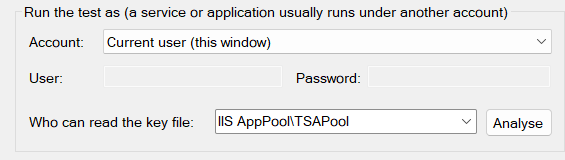
A service does not run as you. A signing service, a time stamp server or any web application under IIS runs under a service account, such as an application pool identity, NETWORK SERVICE or a dedicated account. It has other permissions, no desktop, its own profile and certificate store. A test that works for you proves little for it. The group Run the test as runs the test under the account that matters.
13.1 Another user
Select Another user (user name and password), type the account (DOMAIN\user, .\user for a local account, or user@domain) and its password, then use Run tests, Inspect key or Speed test as usual. The program starts a second copy of itself with that account, runs the test there and shows its report in your window, with the account written at the top.
- The account must be allowed to log on locally or as a batch job, and must be able to read the exe. Copy
Digital Certificate Tester.exeto a folder that the account can read (for exampleC:\Tools) when the answer is Access denied. - The certificate store, the key files and the registry that the test sees are those of that account: a certificate in your Current User store does not exist for it. Select a certificate of the Local Machine store, a PFX file that the account can read, or a PKCS#11 device.
- The PIN and the password go to the second copy through a private pipe, never on the command line.
- The continuous test runs in the window of the current user. Run it under another account from the command line (section 14).
Typical messages: The user name or the password is not correct; The account is not allowed to log on in this way (a service account such as an application pool identity cannot be used with a password: use the analysis of section 13.3); The account is disabled; The account is locked out.
13.2 Service accounts
LocalSystem, NetworkService and LocalService need administrator rights. The program then creates a temporary scheduled task that runs the test under that account once, reads its result, and deletes the task and the result file. Nothing else is changed. Without administrator rights the option explains that and does nothing; start the program with Run as administrator to use it.
A PIN or a password is not passed to a service account (it would have to be written in a file). Use a source that needs none: a certificate of the Local Machine store whose key that account can use.
13.3 Who can read the key file
You often cannot log on as the account of an IIS application pool: it has no password. The button Analyse answers the question without logging on. Select the certificate, type the account in Who can read the key file (for example IIS AppPool\TSAPool; the list offers common accounts) and press Analyse. The program reads the permissions of the key file and tells whether that account has read access. The name of an application pool is enough: its identity is worked out, so IIS does not have to be installed on the computer.
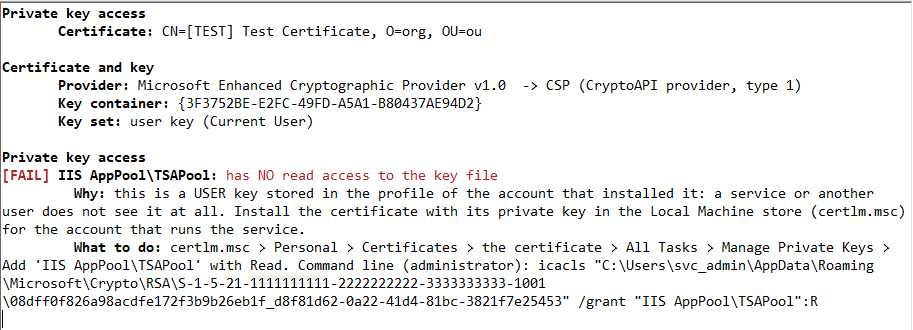
- can read the key file in green: the account is allowed (the line says through which group or account).
- has NO read access to the key file in red: the report gives the way to fix it (Manage Private Keys in the Certificates console, or an
icaclscommand that you run yourself). - The report also says when the problem is more basic: a user key is stored in the profile of the account that installed it, and another account does not see it at all. Install the certificate and its key in the Local Machine store.
- The analysis applies to software keys, which have a file. A key on a token or an HSM has no file: there, access is decided by the provider and the PIN. Run the test as that account instead.
The analysis is approximate: it considers the account and the groups that it always belongs to (Everyone, Authenticated Users, Users, and IIS_IUSRS for a pool). It never changes a permission.
14. Command line
The same file works without a window when you start it with arguments. It writes the report to the console and ends with an exit code, so it fits a monitoring script, a scheduled task or a support session. Arguments begin with / or -; a value follows the name (/slot 0) or is joined with a colon (/slot:0).
| Exit code | Meaning |
|---|---|
| 0 | Everything worked: the required signatures were created and verified. |
| 1 | A test failed (the report says which one and why). |
| 2 | The arguments are not valid (the usage is printed). |
The source of the certificate
| Arguments | Meaning |
|---|---|
| /store CurrentUser\My /thumbprint <thumbprint> | A certificate of the Windows store. CurrentUser or LocalMachine, then the store (default My). The thumbprint is the one shown by the Certificates console. |
| /scpin <PIN> | The smart card PIN of a store certificate whose key is on a token (set silently). |
| /pfx <file> /password <password> | A PFX or P12 file. |
| /pkcs11 <library.dll> /slot <n> /thumbprint <thumbprint> /pin <PIN> | A PKCS#11 device. The certificate is searched on the token by its thumbprint (with a login when the token hides it). Alternative to the thumbprint: /cert <file.cer>. |
| /simulate KSP:<provider> /simulate CSP:<provider>:<type> | Builds, in memory only, a certificate whose key is said to be in that provider. It reproduces a missing or broken provider (for example /simulate KSP:AlfaSignKSP) and checks that the diagnostics explain it. Nothing is installed. |
Secrets. A PIN or a password written on the command line can be seen in the list of processes. Give - as the value (/pin -) to read it from the standard input, or use /secrets-stdin and send lines PIN=..., SCPIN=..., PASSWORD=..., ended by an empty line.
What to do
| Command | Meaning |
|---|---|
| (nothing) | The signing test of the selected certificate. |
| /inspect | Describe the certificate and its key (or scan the PKCS#11 device). Nothing is signed. |
| /scan | Scan a PKCS#11 library; with /pin it also logs in. |
| /list | List the certificates of a store that have a private key. |
| /health | Check every CSP and KSP of the computer. |
| /speed /seconds 10 /threads 4 /noreuse | The speed test. /noreuse opens the key for every signature. |
| /continuous /interval 5 /seconds 600 | The continuous test, for 600 seconds (0 = until the process is stopped). |
| /acl "IIS AppPool\TSAPool" | Can that account read the key file of the certificate? |
| /as <user> /aspassword <password> | Run the test, /inspect or /speed under another user. |
Options
| Option | Meaning |
|---|---|
| /hash sha256,sha384,sha512,sha1 | The hash algorithms (default: SHA-256, SHA-384 and SHA-512). |
| /size <bytes> | The size of the random data (default 1024). |
| /nopss, /nocms, /notokenhash | Skip the optional RSA-PSS, CMS fallback or hash-on-the-device methods. |
| /json | Write the report as JSON instead of text. |
| /out <file> | Also write the report to a file. |
| /gui | Open the window with the fields filled in (section 3). |
Examples
rem a certificate of the Local Machine store, SHA-256 only
"Digital Certificate Tester.exe" /store LocalMachine\My /thumbprint 900FB3CD611104916164242C16DAD369189D2023 /hash sha256

rem a token through PKCS#11; the PIN comes from the standard input
echo 1234| "Digital Certificate Tester.exe" /pkcs11 "C:\Windows\System32\eTPKCS11.dll" /slot 0 /thumbprint 1DDF4A677FEAA2057BCEC975778AD5EAED70E52A /pin -

rem speed of a PFX key with 4 threads for 10 seconds
"Digital Certificate Tester.exe" /pfx signing.pfx /password MyPassword /speed /seconds 10 /threads 4

rem the providers of this computer
"Digital Certificate Tester.exe" /health
Monitoring. The exit code and the JSON report make a simple check. This PowerShell script checks every 15 minutes (as a scheduled task) that a key on an HSM still signs, and writes the cause to the event log when it does not:
$exe  = "C:\Tools\Digital Certificate Tester.exe"
$lib  = "C:\Program Files\SafeNet\LunaClient\cryptoki.dll"
$thumb = "1DDF4A677FEAA2057BCEC975778AD5EAED70E52A"

$report = "1234" | & $exe /pkcs11 $lib /slot 0 /thumbprint $thumb /pin - /hash sha256 /nopss /nocms /json
if ($LASTEXITCODE -ne 0) {
    Write-EventLog -LogName Application -Source "Application" -EntryType Error -EventId 4001 `
        -Message "The signing key does not work: $report"
}
The JSON report has the form {"success":true,"errors":0,"warnings":0,"items":[{"section":"...","name":"...","value":"...","level":"ok"}]}, where level is info, ok, warn or error.
15. Messages and solutions
Every failure in the report has the same shape: a headline with the code, then Possible cause, What to do and Technical detail. The tables below list the messages that you will meet. None of the remedies is applied by the program: it only tells you what to do.
Windows: CryptoAPI and CNG
| Message | Cause and solution |
|---|---|
The provider of the private key failed to initialize (“Provider DLL failed to initialize correctly”). 0x8009001D NTE_PROVIDER_DLL_FAIL | The DLL of the CSP or KSP that holds the key is missing, damaged or blocked; the client software of the HSM, token or smart card is not installed, was removed or was updated without a restart; the HSM client service is stopped or the network to the HSM is down; the bitness of the DLL does not match the process; Windows security (an antivirus, a policy) blocked the DLL. Run Provider health: it names the provider and the file. Reinstall or repair the client software, restart the application, check the HSM link, and use the same bitness. |
The DLL of the provider cannot be found (“Provider DLL could not be found”). 0x8009001E | The provider is registered but its DLL was deleted. Same remedies as above. |
The key set does not exist, or the account cannot read it (“Keyset does not exist”). 0x80090016 NTE_BAD_KEYSET | The certificate is in the store, but its private key file was deleted, was installed by another account, or the account cannot read it; or the key is on a token or HSM that is not connected. Reconnect the device; install the certificate again with its private key in the right store; give the account the Read right on the key (section 13.3). |
Access to the private key is denied. 0x80090010 NTE_PERM, 0x80070005 E_ACCESSDENIED | The account that runs the application may not use the key. Grant Read in certlm.msc > All Tasks > Manage Private Keys. For IIS the account is IIS AppPool\<pool name>. Use Analyse to see who has access. |
The key needs a PIN or a confirmation from a person, and no window can be shown here. 0x80090022 NTE_SILENT_CONTEXT | The key is protected by a PIN (smart card, token) or by strong key protection, and the process has no desktop (a service). Type the Smart Card PIN in the program, or use PKCS#11, which sends the PIN itself. |
The provider type of the key does not match the provider (“Invalid provider type specified”). 0x80090014 | The key refers to a CSP that is not installed or was replaced (the HSM client was removed), or the container belongs to another provider. The section Likely cause checks the provider. Reinstall the client of the device. |
The provider does not support the algorithm. 0x80090008 NTE_BAD_ALGID | A legacy CSP (for example Microsoft Base Cryptographic Provider) cannot sign with SHA-256, SHA-384 or SHA-512. Use Microsoft Enhanced RSA and AES Cryptographic Provider, a KSP, or the PKCS#11 library of the device. SHA-1 may work for a test. |
The operation is not supported by the provider. 0x80090029 NTE_NOT_SUPPORTED | The provider cannot do this kind of signature (RSA-PSS, a hash that the device does not know). For an optional method the report shows information, not a failure. Use PKCS#1 v1.5 and SHA-256. |
The key cannot be used in this state. 0x8009000B NTE_BAD_KEY_STATE | No access to the key, or a key that needs a person. Check Manage Private Keys and the PIN setting; use PKCS#11 for tokens. |
The provider failed. 0x80090020 NTE_FAIL | An internal error of the provider or of the device: a stuck smart card, a removed card, a network HSM that dropped the connection. Unplug and plug the token, restart the Smart Card service (SCardSvr), reconnect the HSM. |
The private key does not exist. 0x8009002C NTE_NO_KEY | The key was deleted from the token or HSM, or the certificate was copied without its key. Install the certificate again with its key. |
| The ECDSA key of the certificate uses explicit curve parameters instead of a named curve. | Windows cannot import such a private key. Create the certificate again with a named curve such as P-256. |
| The private key of the certificate is in the CryptoAPI provider ..., which cannot hold ECDSA keys. | An EC key needs a KSP (CNG). Install the certificate again so that its key is in a CNG provider. |
| The certificate has NO private key in this source. | It was installed without its key, or the key was deleted. Install the certificate again from a PFX file with its key. |
There is no smart card or token in the reader. 0x8010000C SCARD_E_NO_SMARTCARD; the card was removed 0x80100069; no reader 0x8010002E; the Smart Card service is not running 0x8010001D | Insert the token or card; plug the reader; start the Smart Card service in services.msc; try again. |
The PIN is not correct 0x8010006B / is blocked 0x8010006C / the entry was cancelled 0x800704C7 | Check the PIN; do not retry blindly. A blocked PIN is unblocked with the PUK or the administrator PIN of the token (the software of the token has a command for it). |
| The signature was created but does NOT verify with the public key of the certificate. | The key on the device does not belong to this certificate (a renewed certificate with a new key, a wrong container), or the provider returned a wrong signature. Select the certificate whose key is on the device. |
| The verification accepted MODIFIED data. | The verification of this method is not reliable. This should never happen; report it with the report saved. |
PFX and files
| Message | Cause and solution |
|---|---|
The password of the PFX file is not correct. 0x80070056 | A wrong password (Windows calls it “network password”), or the file is damaged or is not a PKCS#12 file. Check it with certutil -dump file.pfx or OpenSSL, or export the certificate again. |
| The PFX file was not found / a file cannot be found | The path is wrong, the file was moved, or the account that runs the test cannot see it (for example a mapped drive of another session). Use a local or UNC path that the account can read. |
| The PFX file contains no private key. | The file has only the certificate. Export it again with the private key. |
PKCS#11
| Message | Cause and solution |
|---|---|
| The PKCS#11 library was not found: ... | The file was removed or the path is wrong. Select the library again; the list of the window shows the ones that are installed. |
| The PKCS#11 library ... cannot be used: it is a 32-bit library, while the application runs as 64-bit. | The library and the program have different bitness. Select the 64-bit version of the library of the device. (The program is a 64-bit process on 64-bit Windows.) |
| The PKCS#11 library ... cannot be loaded (...). Check that it is the 64-bit version of the library and that the software of the device is installed. | The text in brackets is the message of Windows. The file is not a PKCS#11 library, or a file that it needs is missing: install the client software of the device. |
| No PKCS#11 device is present (no token in any slot). | The library loaded but reports no token: the token is not inserted or not recognised, the HSM client is not running, the network to the HSM is down, or the account that runs the test does not see the device. Insert the token, start the client, check the link and the account. |
| The signing certificate was not found on the PKCS#11 devices and the slot N does not exist. | No token shows the certificate and the slot number is out of range. Use Scan to see the slots; the first is 0. |
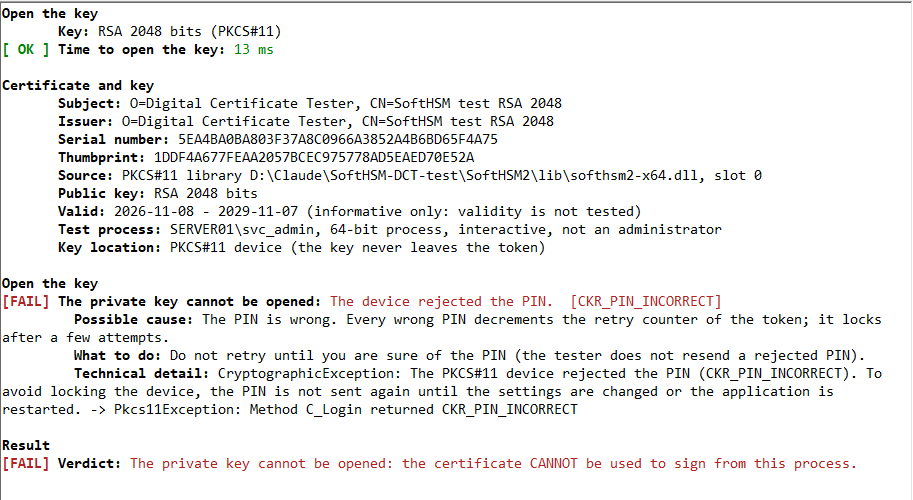
The device rejected the PIN. CKR_PIN_INCORRECT | The PIN is wrong. The program does not send it again. Do not retry until you are sure; CKR_PIN_LOCKED means the token is locked and needs the PUK or the SO PIN; CKR_PIN_EXPIRED means the PIN must be changed with the software of the token; CKR_PIN_LEN_RANGE / CKR_PIN_INVALID mean the PIN has a length or format that the token does not accept.
 |
| The private key of the selected certificate was not found on the device (session state ..., N private keys visible). The EC private key ... cannot be identified. | The token holds no private key that matches this certificate: another token or slot, a key that was deleted or never created, a certificate of another key pair, or a PIN that gives no access to the keys. Click Scan with the PIN and compare the CKA_ID of the certificate and of the private key; select the certificate that is on the token. |
| Slot used: N ... NOT the configured slot | Information (orange). The certificate was found on another token than the one in the slot that you typed, and it was used. The order of the slots changes when tokens are plugged or unplugged; this is why the program searches all of them. |
CKR_TOKEN_NOT_PRESENT, CKR_DEVICE_REMOVED, CKR_SESSION_HANDLE_INVALID, CKR_DEVICE_ERROR | The connection with the device was lost (token removed, network interruption, reset). The program reloads the library once and retries; the report says when it happened. See section 12. |
CKR_MECHANISM_INVALID (for a “Hash on the device” method) | The token does not support that mechanism. It is an optional method: the result is information, not a failure. |
CKR_DATA_LEN_RANGE | The device does not accept data of that length (for example a long digest with a short curve). Use a hash that fits the curve, or let the device hash. |
CKR_KEY_FUNCTION_NOT_PERMITTED | The key may not sign (CKA_SIGN is false). |
Provider health and Run as
| Message | Cause and solution |
|---|---|
| DLL MISSING ... the provider is registered but cannot load | See 0x8009001D above. Repair or reinstall the client software of the device. |
| did not answer in 15 seconds (the provider hangs) | A network HSM that is down, or a Smart Card service that does not respond. Check the HSM, restart its client service or the Smart Card service. |
| loads, but its DLL is 32-bit (or 64-bit) | A process of the other bitness cannot use the provider. Use the build of the application that matches it. |
| The user name or the password is not correct. / The account is not allowed to log on in this way. / The account is disabled. / The account is locked out. | The logon of Another user failed. A service account (an application pool) cannot log on with a password: use Analyse. |
| Access denied: the account cannot read the exe | Copy Digital Certificate Tester.exe to a folder that the account can read. |
| Running as ... needs an administrator | The service-account options create a temporary scheduled task. Start the program with Run as administrator. |
| has NO read access to the key file | See section 13.3. |
16. Typical situations
The certificate is in the store but signing fails
- Press Provider health. A red line names a provider whose DLL is missing or hangs: that is the cause for every certificate whose key is in it.
- Press Inspect key and look at Provider, Provider DLL and Key file. The Likely cause section of a failed test says the same in words.
- If the key is on a token or an HSM, check that the device is connected and that its client service runs. Run the continuous test to see whether it comes and goes.
It works for me, but not for the service
- Find the account of the service (for IIS: the identity of the application pool, IIS AppPool\<name>).
- Press Inspect key: if the key is a user key (Key set: user key), the service does not see it. Install the certificate and its key in the Local Machine store.
- Give the account Read on the private key (Manage Private Keys), then check with Analyse.
- Test as the account itself: Another user for a normal account, or a service-account option (administrator needed).
- For a PKCS#11 device: the account must have access to the library, the configuration of the client and the device. Run the test as that account.
The PIN is wrong or the token is nearly locked
Press Scan without a PIN first: the line User PIN shows the retry counter. If it says FINAL TRY or LOCKED, do not enter a PIN you are not sure of; unblock the token with its PUK or administrator PIN using the software of the token. The program never sends a rejected PIN a second time.
Signing is too slow
Run the speed test with 1 thread and with several. A software key signs thousands of times per second; a USB token only a few. If a network HSM does not scale with the number of threads, check the limit of sessions of the HSM and the network latency. If the first signature is much slower than the next ones, the cost is opening the key: let the application reuse the key instead of opening it for every signature.
SHA-256 fails with an old provider
The result is NTE_BAD_ALGID for SHA-256 but SHA-1 signs: the key is in a legacy CSP such as Microsoft Base Cryptographic Provider. Move the key to a provider that supports SHA-2 (a KSP, or Microsoft Enhanced RSA and AES Cryptographic Provider) or use the PKCS#11 library of the device. A 1024-bit RSA key also limits the hashes that can be used with the PSS padding.
32-bit and 64-bit
The message it is a 32-bit library, while the application runs as 64-bit means that the library and the program do not match. Use the 64-bit library of the device. This version of the program runs as a 64-bit process on 64-bit Windows; a device that has only a 32-bit library cannot be tested with it.
17. What the program does and does not do
- It never changes the system. It does not install anything, does not write to the certificate stores, does not change the permissions of a key, a file, the registry or the services, and does not export a private key. Where something has to be changed, the report gives the command or the steps and you run them yourself.
- A PFX file is loaded in memory (ephemeral key set) whenever Windows allows it, so no key file is left on the disk.
- The PIN is protected. A rejected PIN is not sent again. The scan shows the retry counter first. The sessions with a PKCS#11 device are read-only. A login happens only when you typed a PIN and asked for a test or for a scan.
- PINs and passwords are not saved and are never written in the report. When another account is used, they travel through a private pipe, not on the command line.
- The random data that is signed is generated for each test and is not stored.
- The only exception is the option of a service account (section 13.2): with administrator rights it creates a scheduled task and a result file under
C:\ProgramData\Digital Certificate Tester, and removes both at the end. - Providers are only loaded by Provider health: no key is opened and nothing is signed.
A test signs with the real key. For a device that logs every signature or limits their number, or that asks for a confirmation on its own screen, use a test certificate, or keep the number of signatures small (disable the optional methods and select one hash).
18. Settings and files
- Settings are in the registry of the current user,
HKEY_CURRENT_USER\Software\Secure Soft\Digital Certificate Tester: the last source, the store, the thumbprint, the path of the PFX file and of the PKCS#11 library, the slot, the hashes, the size of the data, the options of the tests, the account and the user name of Run as. They are read value by value: a missing or damaged value falls back to its default and never changes the others, and reading never writes. - PINs and passwords are not part of the settings.
- Reports are saved only when you press Save report or use
/out. - To remove every trace of the program, delete the exe and the registry key above.
19. Glossary
| Term | Meaning |
|---|---|
| Private key | The secret half of a certificate. It signs. It must never be copied; an HSM never lets it out. |
| Hash | A short fingerprint of data. A signature signs the hash. |
| SignData, SignHash | Two ways to sign: the provider hashes and signs, or the caller hashes and the provider signs the digest. |
| PKCS#1 v1.5, PSS | Two paddings of an RSA signature. v1.5 is the usual one. |
| ECDSA | The signature of an elliptic-curve key. The result is the pair r, s. |
| CSP | Cryptographic Service Provider: the older CryptoAPI component that manages keys, identified by a name and a type. |
| KSP, CNG | Key Storage Provider: the newer component of Cryptography API: Next Generation. Elliptic-curve keys need it. |
| Key container | The name under which a provider keeps a key. |
| User key, machine key | A key of one account (in its profile), or a key of the computer (usable by the accounts that have the right). |
| Key file | The file where Windows keeps a software key. Its permissions decide who can use the key. |
| Certificate store | The place where Windows keeps certificates. Current User belongs to an account, Local Machine to the computer. |
| Thumbprint | The hash of a certificate. It identifies the certificate in a store or on a token. |
| PFX / P12 | A file with a certificate and its private key, protected by a password. |
| HSM | Hardware Security Module: a device that keeps keys and signs inside it. |
| PKCS#11 | The standard interface of programs to the keys of an HSM, a smart card or a token, through a library of the manufacturer. |
| Slot, token | In PKCS#11, a place where a device is connected, and the device (or the partition) that is in it. |
| Session, login | A connection to a token, and the step where the PIN is presented. A token limits the sessions and counts the wrong PINs. |
| CKA_ID | The identifier that links the certificate, the public key and the private key of a pair on a token. |
| Mechanism | A signing method of a token, such as CKM_RSA_PKCS or CKM_ECDSA. |
| PUK, SO PIN | The administrator secrets of a token, used to unblock the user PIN. |
| Application pool identity | The Windows account under which an IIS application runs. |
| Bitness | 32-bit or 64-bit. A process can load only the DLLs of its own bitness. |
20. Warning and disclaimer
Every effort has been made to make this manual as complete and accurate as possible, but no warranty or fitness is implied. The information provided is on an “as is” basis. The author shall have neither liability nor responsibility to any person or entity with respect to any loss or damages arising from the information contained in this manual or from the use of the program. Signing with the key of a device can be logged, limited or charged by the device or its operator, and a wrong PIN can lock a token: use the program with care on production devices.
.NET, Windows, Windows Server, IIS and PowerShell are trademarks of Microsoft Corporation. SafeNet, Luna and other product names are trademarks of their owners. SoftHSM is a project of the OpenDNSSEC community. All other trademarks are the property of their respective owners.